Compile your document
Compiling runs LaTeX on your project and shows the PDF in the preview pane next to the editor. This page covers how to start a compile, the two render modes, and what a compile includes.
Compile once
Section titled “Compile once”- Open your project in the editor.
- Click Compile at the top of the editing area, or press Ctrl+Enter (Cmd+Enter on a Mac). Ctrl+Shift+Enter works too.
- Watch the button. It reads Compiling… while LaTeX runs, then Compiled when the PDF is ready, or Failed if LaTeX stopped on an error.
The PDF appears in the preview pane. If the compile failed, the Output panel below the editor opens on a list of the errors. See Compile logs and errors.
Cancel a compile
Section titled “Cancel a compile”While a compile is running, the button changes to Cancel. Click it to stop the compile. The Output panel shows “Compile cancelled.”
Choose Auto render or Manual render
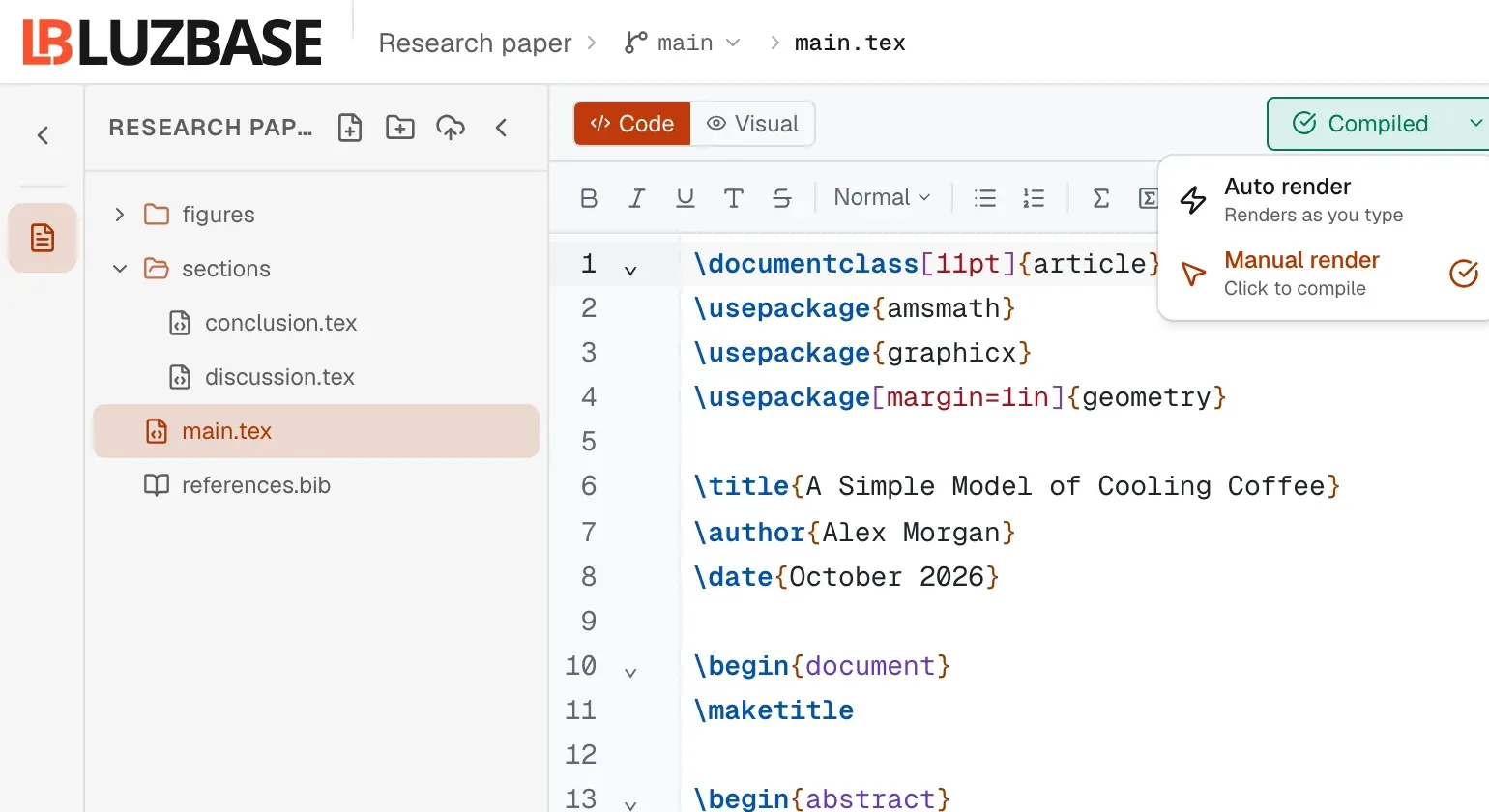
Section titled “Choose Auto render or Manual render”The small arrow next to Compile opens the Render mode menu:
| Mode | What it does |
|---|---|
| Manual render (“Click to compile”) | Compiles only when you click Compile or press the shortcut. This is the default. |
| Auto render (“Renders as you type”) | Compiles shortly after you stop typing, so the preview keeps up with your writing. |
Your choice is remembered in this browser.
In Auto render:
- A compile starts about half a second after you stop typing.
- When a collaborator edits the file you have open, the preview refreshes at most once every 3 seconds.
- People who can only view the project never trigger automatic compiles.
What a compile includes
Section titled “What a compile includes”A compile uses the project exactly as it is right now on your branch, including changes nobody has saved as a version yet. You do not need to save a version before compiling. See How saving works.
- Luzbase compiles the project’s main file. See The main file.
- The engine (pdfLaTeX, XeLaTeX or LuaLaTeX) is chosen from your main file. See Compilers and TeX Live.
- The PDF always includes what you just typed.
Pressing Ctrl+S does not compile. It opens the Save version dialog. See Save a version.
Everyone on the branch sees the same PDF
Section titled “Everyone on the branch sees the same PDF”Compiles belong to the branch, not to you alone. The newest compile on a branch is shown to everyone who has that branch open. If someone starts a new compile while another is waiting, the newer one replaces it. An automatic compile never cancels a compile someone started by hand.
People with the Viewer role can compile too, to see the current state of the document. Viewers get a Compile button in the preview toolbar. Nobody can compile an archived project.
Which PDF you see next time
Section titled “Which PDF you see next time”- When you open the editor again, you see the PDF from the last compile someone started with Compile or the shortcut.
- Compiles from Auto render are only previews while you work. They are not kept as the branch’s PDF.
When you open the editor in Auto render and the stored PDF is older than the project, Luzbase compiles again automatically.
If a compile fails, the last good PDF stays on screen with an Out of date badge. See PDF preview.
Limits
Section titled “Limits”| Limit | Value |
|---|---|
| Time for one LaTeX run | 55 seconds, on every plan |
See Limits for the rest.
When a compile takes longer than 55 seconds, it stops with a message that explains the usual causes. See Compile logs and errors.
Every plan gets the same time limit. Paid plans use a priority compile queue, so their compiles start sooner when the service is busy. The plan that counts is the plan of the person who starts the compile. See Plans and limits or luzbase.com/pricing.