Save a version
Saving a version records the state of every file on your branch under a short description, so you can come back to it, compare it or share it. Your work is already saved as you type. A version marks a point worth keeping. See How saving works.
Save a version
Section titled “Save a version”- In the editor, click Save version… in the header, or press Ctrl+S (Cmd+S on a Mac). The badge on the button shows how many changes there are since the last version, for example “3 changes”.
- In Describe this version, write what changed, for example “Finished the related-work section”. A description is required, up to 500 characters.
- Check the list of changed files. Each file is marked Added, Modified or Deleted. Click Show diff to see the changed lines.
- Click Save version, or press Ctrl+Enter (Cmd+Enter).
You see “Version saved.” The new version appears in the project’s History tab.
How long older versions stay available depends on the project owner’s plan. On the Free plan, the stored files of old versions are eventually deleted. See How far back history goes.
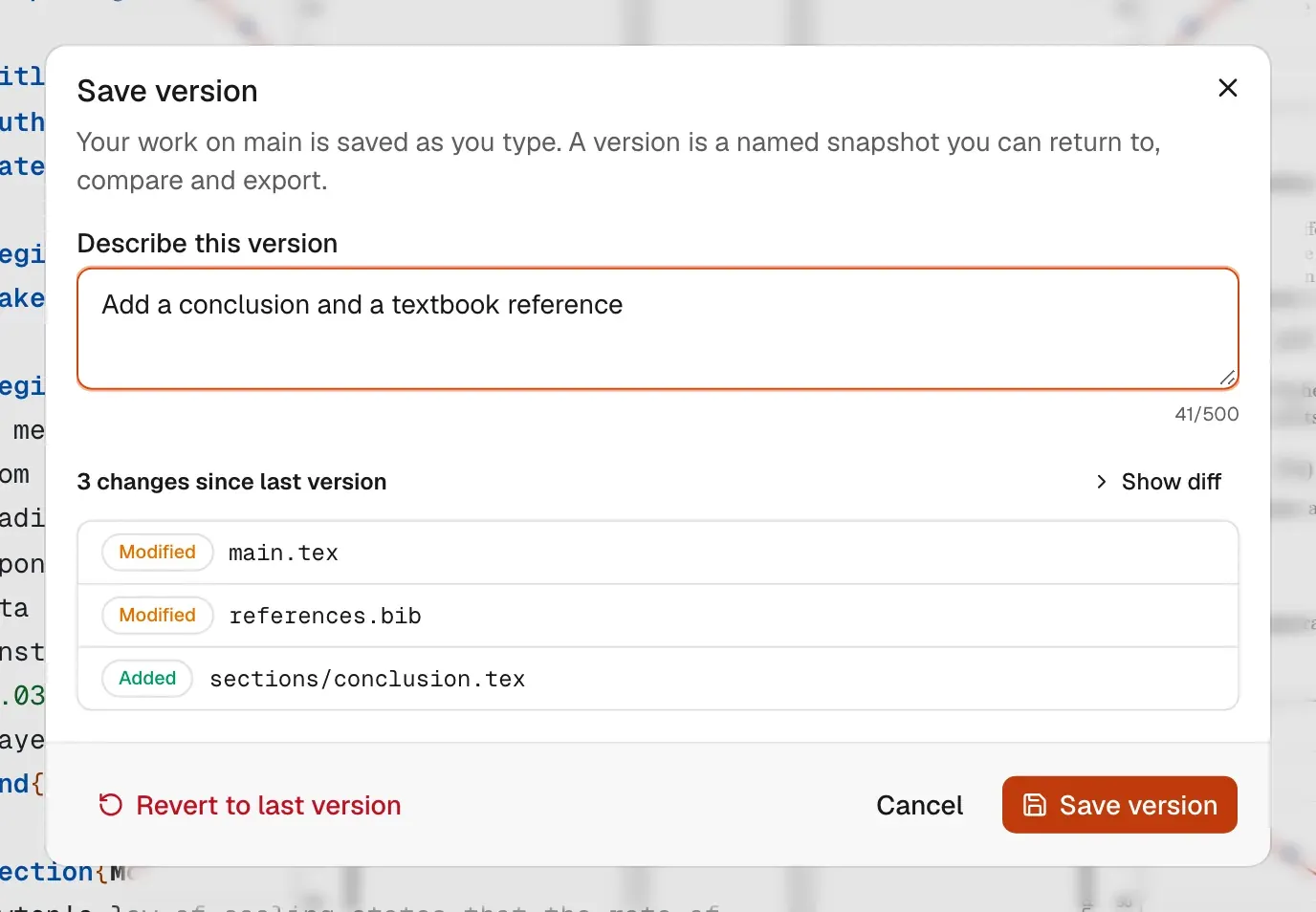
If you close the dialog without saving, your description is kept until you leave the page.
When others are editing
Section titled “When others are editing”A version includes everyone’s changes on the branch up to the moment you click Save version, not only yours. When others are editing, the dialog says so. Everyone who made changes since the last version is shown as a co-author of the new version.
If someone else saves a version at the same moment, you see “Someone else saved a version at the same moment. Review the changes below and try again.” Check the list and save again.
If you can’t save
Section titled “If you can’t save”| Situation | What happens |
|---|---|
| Nothing changed since the last version | Save version is greyed out. |
| Your latest changes haven’t reached the server yet | Luzbase asks you to wait until the status shows Live, then save again. |
| The branch is protected and you are not the owner | Only the project owner saves versions on a protected main. Click Create a branch to continue on your own branch, then open a pull request. See Pull requests. |
| You have view access, or the project is archived | Save version… is not shown. |
Revert to last version
Section titled “Revert to last version”Revert to last version throws away every change on the branch since the last saved version and puts the files back as they were.
- Click Save version….
- Click Revert to last version.
- Read the list of changes that will be thrown away, then click Revert N changes. To keep them, click Back.
You see “Reverted to the last version.” Others on the branch see a notice that you reverted it.
To go back further than the last version, use Restore this version in the history.
Who can save versions
Section titled “Who can save versions”Owners and editors can save and revert versions. Viewers can’t. On a protected main, only the owner can. See Roles and permissions.