Editor tour
This tour names every part of the Luzbase editor, so you can find your way around and follow the rest of the docs. To open the editor, click Open in editor on a project page.
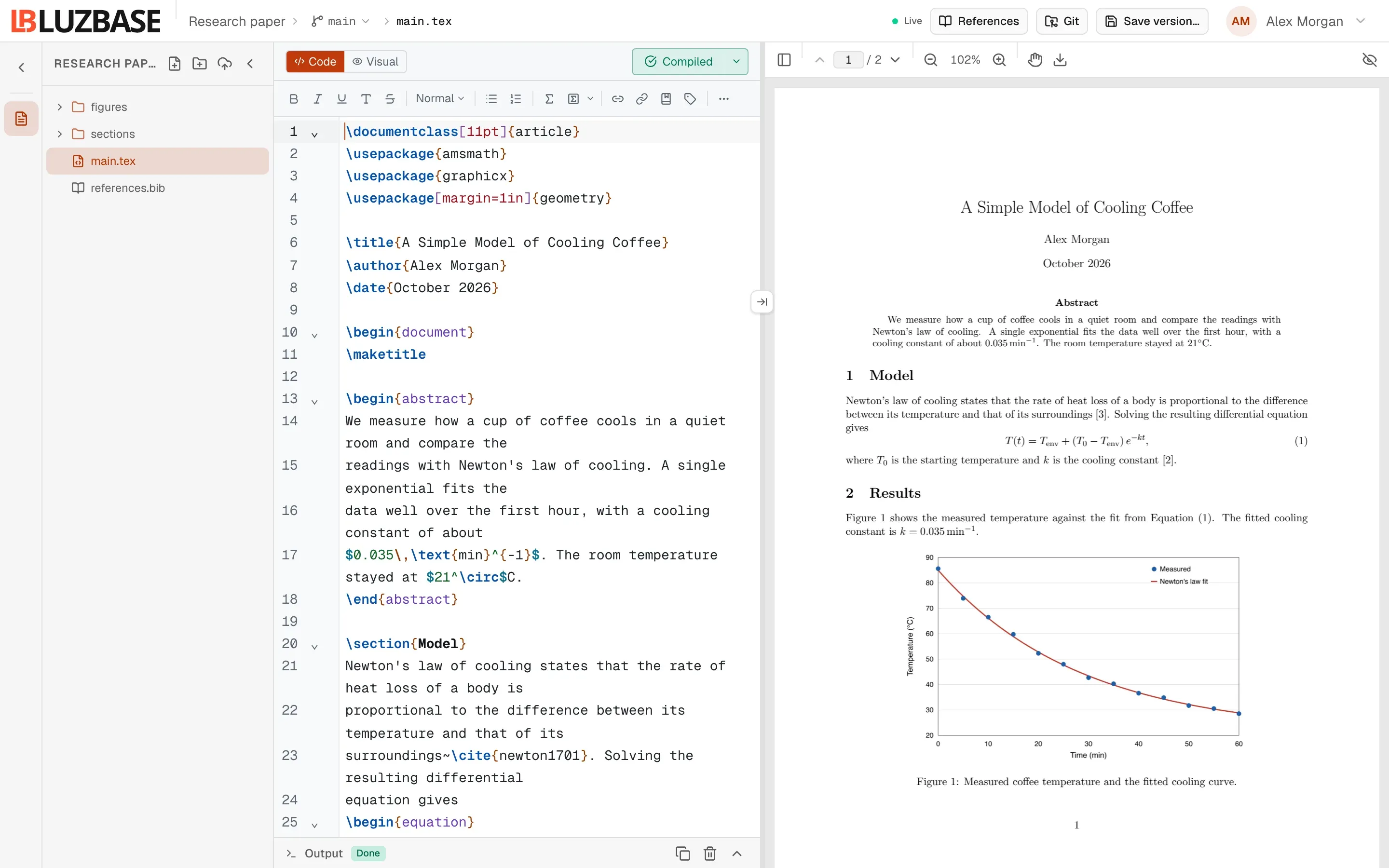
The layout at a glance
Section titled “The layout at a glance”On a desktop screen, the editor has these parts, from left to right:
| Part | What it does |
|---|---|
| Icon rail | Hide sidebar / Show sidebar and Files open or close the file tree. |
| File tree | Your project’s files and folders. |
| Editor column | The Code / Visual switch, the Compile button, the formatting toolbar, the text editor and the Output panel. |
| Divider | Drag it to resize the editor and the preview. It also holds the Show in PDF button. |
| PDF preview | Your compiled document. When it is hidden, click Open preview on the right edge to bring it back. |
The top header runs across the whole window.
Top header
Section titled “Top header”From left to right:
- The Luzbase logo takes you back to all your projects.
- The breadcrumb shows the project name (a link to the project page), the branch you’re on and the open file. Click the branch name to switch branches or create one. See Branches.
- A read-only badge appears when you can’t edit: Archived, View only, Protected or Read-only.
- The live status shows whether your changes are saved and shared. Live means everything is saved. Reconnecting… or Offline — changes kept in this tab means your edits are kept in this browser tab until the connection is back, so don’t close the tab.
- Avatars show who else is in the project and which file they have open. See Real-time editing.
- References opens Zotero and Mendeley sync. See Zotero and Mendeley.
- Save version… records a named snapshot of the branch. A badge shows how many changes you’ve made since the last version. See Save a version.
On the Pro plan, the editor adds live error checking (the LaTeX language server), and an LSP indicator in the header shows whether it is connected.
File tree
Section titled “File tree”The top of the file tree shows the project name and four buttons: New file, New folder, Upload files and Collapse sidebar. Right-click a file or folder, or click its ⋯ button, to Rename or move… or Delete… it. Coloured dots show who has a file open.
See Files and folders and Upload and import.
Editor column
Section titled “Editor column”Code and Visual modes
Section titled “Code and Visual modes”The Code / Visual switch at the top of the editor column changes how you see the same LaTeX file:
- Code shows the LaTeX source with syntax highlighting, line numbers and autocomplete.
- Visual shows headings, lists, math, figures and tables formatted as you type, while you still edit the same source.
Luzbase remembers your choice in this browser. The switch appears only for LaTeX files, not for .bib or .md files. See Code and visual modes.
Compile button
Section titled “Compile button”Compile builds the PDF. Click the arrow next to it for the Render mode menu: Manual render (compile when you click) or Auto render (compile as you type). See Compile your first PDF.
Formatting toolbar
Section titled “Formatting toolbar”The toolbar appears for LaTeX files. When the window is narrow, the buttons that don’t fit move into More formatting.
| Group | Buttons |
|---|---|
| Text style | Bold, Italic, Underline, Typewriter, Strikethrough, and a menu for Section, Subsection, Subsubsection and Normal text |
| Lists and math | Bulleted list, Numbered list, Inline math, Display math (with Numbered equation in its menu) |
| References | Link, Reference, Citation, Label, Footnote |
| Environments | Abstract, Theorem, Proof |
| Floats | Insert table, Insert figure, Extract text from image (OCR) |
| Pickers | Symbol picker, Add LaTeX package |
| Navigation and help | Find and replace, Go to line, Keyboard shortcuts |
Hover over a button to see what it inserts and its keyboard shortcut. See Keyboard shortcuts and OCR.
The Symbol picker opens as a panel below the editor, with symbols grouped by category and a search box.
Output panel
Section titled “Output panel”The Output panel at the bottom of the editor column shows the compile log. After a failed compile it opens on a summary of the errors, with links to the lines that caused them. Use Copy logs to copy the log. See Compile logs and errors.
PDF preview
Section titled “PDF preview”The preview toolbar has Toggle thumbnails, Previous page, a page number box, Next page, Zoom out, the zoom level (click it to reset to 100%), Zoom in, Pan mode, Export PDF and Toggle preview. An Out of date badge appears when you’ve changed the document since the last compile.
Double-click the PDF to jump to the matching line in the source. To go the other way, double-click in the source or click Show in PDF on the divider. See PDF preview.
On tablets and phones
Section titled “On tablets and phones”- Tablet (768–1023 px wide): the file tree opens as a panel from the left, and the preview takes half the screen.
- Phone (under 768 px): a tab bar at the bottom switches between Files, Code (shown as Visual in visual mode) and Preview.
Editor appearance
Section titled “Editor appearance”The editor follows the app theme: System, Light or Dark. Change it in Account settings → Preferences. See Preferences. You can’t change the editor’s font, font size or colour scheme.