Create your first project
In a few minutes you’ll have a project with a working main.tex, open in the editor and ready to compile.
Before you start, confirm your email address. Luzbase asks for it before you can create a project.
Create the project
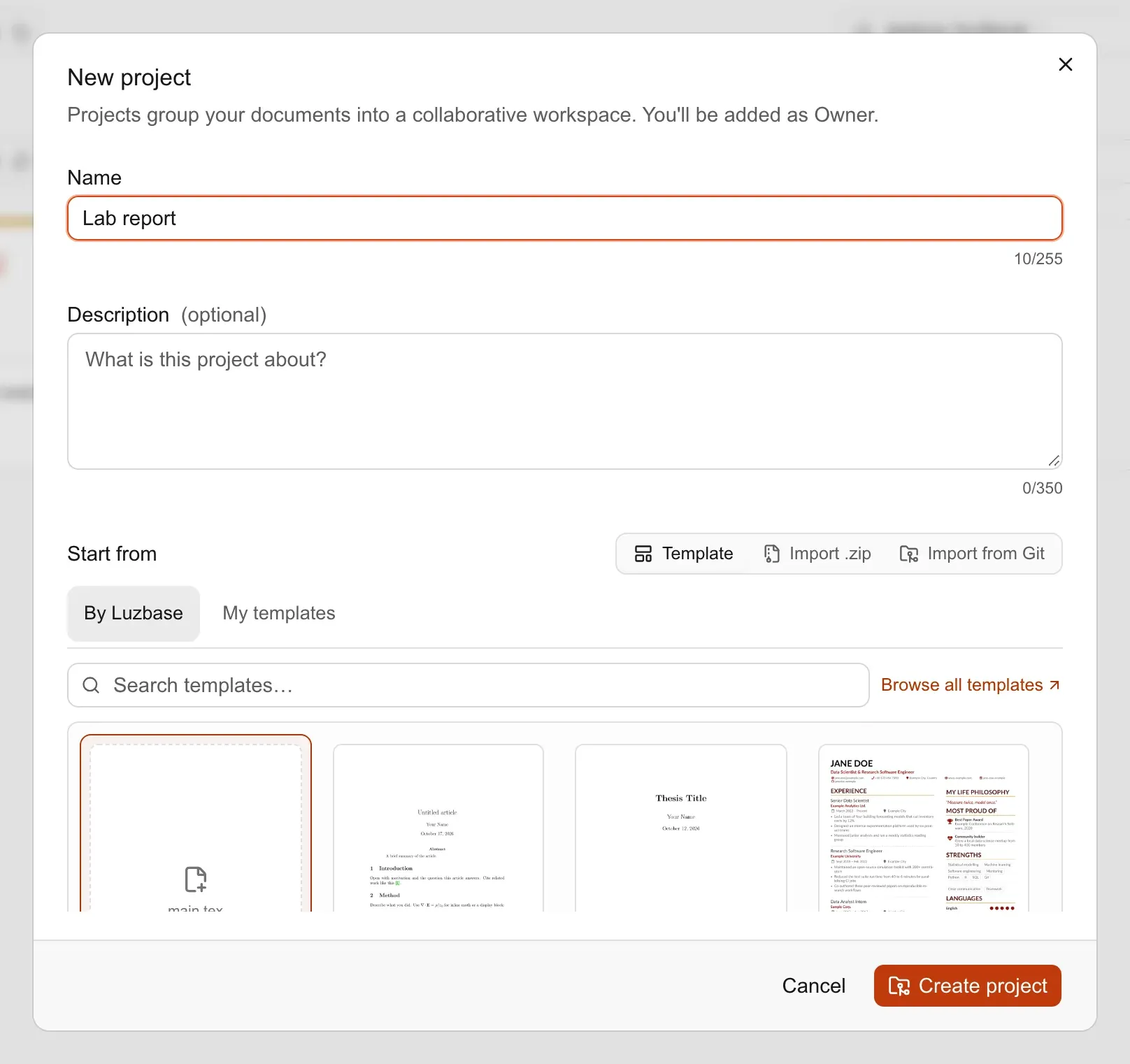
Section titled “Create the project”- Go to luzbase.com/projects and click New project. You can also click Create project in the sidebar.
- In Name, type a name such as
Lab report. You can add a Description (optional) too. - Under Start from, leave Template selected. The Blank tile (“Blank · an empty main.tex”) is chosen by default.
- Click Create project.
Luzbase creates the project, adds you as its Owner and opens the project page.
Open it in the editor
Section titled “Open it in the editor”- On the project page, click Open in editor.
- The editor opens
main.tex. A blank project starts with this file:
\documentclass{article}
\title{Untitled document}\author{}\date{\today}
\begin{document}
\maketitle
Start writing here.
\end{document}
What these lines do
Section titled “What these lines do”\documentclass{article}sets the kind of document.- The lines before
\begin{document}are the preamble, where settings and packages go. - Everything between
\begin{document}and\end{document}appears in your PDF. \maketitleprints the title, author and date you set above it.
Write something
Section titled “Write something”- Change
\title{Untitled document}to your own title, and put your name in\author{}. - Replace
Start writing here.with a few sentences. For example:
\section{Introduction}This report measures how fast a pendulum swings.The period is $T = 2\pi\sqrt{L/g}$.You don’t need to save. Luzbase saves every change as you type. The status in the header shows Saving… while your latest changes are on their way, and Live once everything is saved and shared.
Compile and save a version
Section titled “Compile and save a version”- Click Compile to build the PDF. It appears in the preview on the right. See Compile your first PDF.
- When you reach a point you want to keep, click Save version… in the header, describe your changes (for example
First draft of the introduction) and click Save version.
A saved version is a named snapshot you can return to later. How far back you can go depends on the project owner’s plan: on Free, versions older than the history window are hidden, and after an email notice their stored files can be deleted. See Save a version and Version history.
Next steps
Section titled “Next steps”- Take the editor tour
- Add files and folders, such as chapters and images
- Invite collaborators