Files and folders
You manage a project’s files in the editor’s file tree: create files and folders, rename or move them, and delete what you no longer need. You need to be the project’s Owner or an Editor.
Every change in the file tree is live. It applies straight away to the branch you’re working on, for everyone on that branch.
Create a file
Section titled “Create a file”- Click New file at the top of the file tree.
- In Path, type the file name, for example
chapters/intro.tex. Any folders in the path are created for you. - Click Create file.
You can create text files only, such as .tex, .bib or .sty. To add an image or PDF, upload it instead. See Upload and import.
To include the new file in your document, add it to your main file:
\input{chapters/intro}Create a folder
Section titled “Create a folder”- Click New folder.
- In Folder, type a name such as
figures. - Click Create folder.
A folder exists only while something is in it, so Luzbase adds an empty, hidden placeholder file (.gitkeep) to a new folder. You won’t see it in the tree. A folder name can’t end in a file extension, such as figures.tex.
Rename or move a file or folder
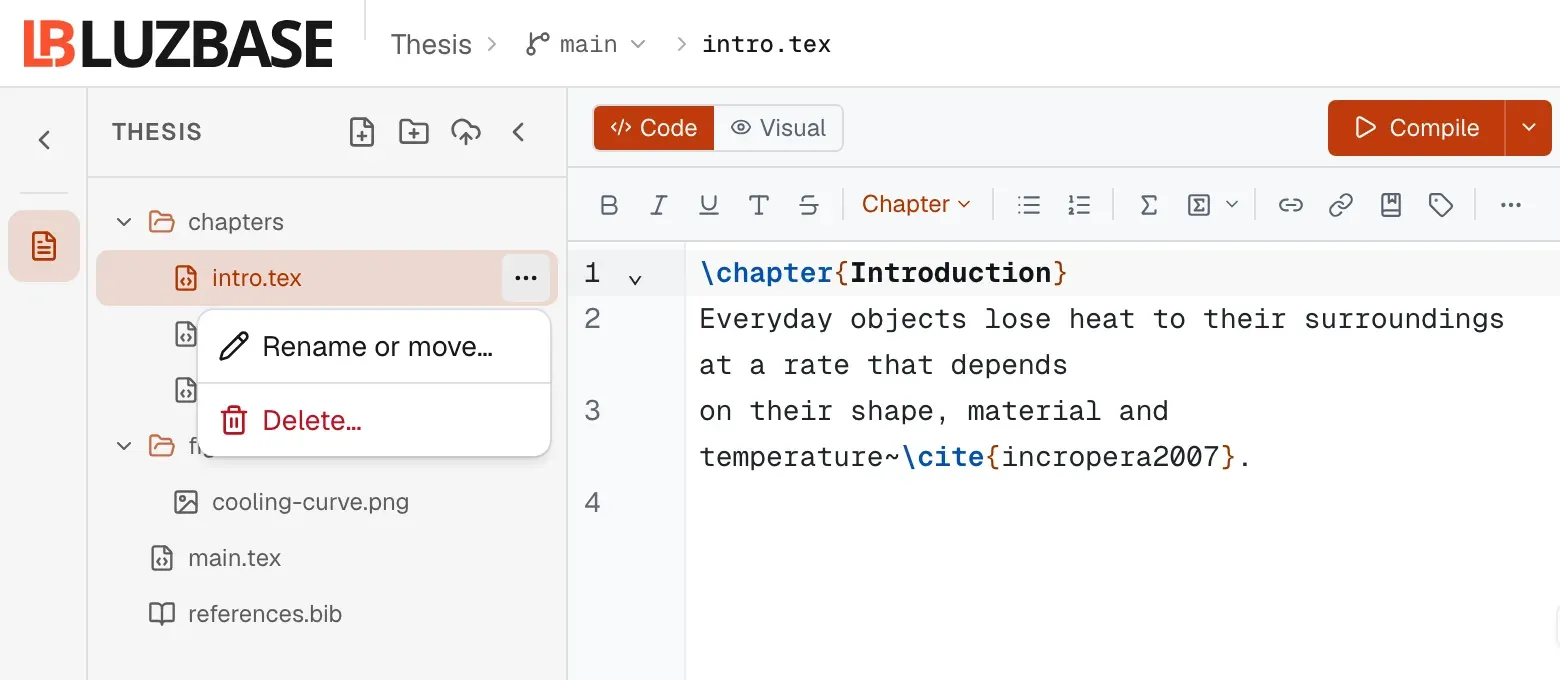
Section titled “Rename or move a file or folder”- Right-click the file or folder, or click its ⋯ button.
- Click Rename or move….
- Edit the Path. To move the item, change its folder in the path, for example from
intro.textochapters/intro.tex. Moving a folder moves every file in it. - Click Rename.
You can also drag a file or folder onto another folder, or onto an empty part of the file tree to move it to the top level.
An image must keep an image extension when you rename it.
Delete a file or folder
Section titled “Delete a file or folder”- Right-click the file or folder, or click its ⋯ button.
- Click Delete….
- Read the confirmation and click Delete.
The confirmation warns you when:
- The deletion would leave no
.texfile, so the project won’t compile. - You’re deleting
main.tex, which is where the compiler starts.
You can’t delete the last file in a project.
Warnings about broken references
Section titled “Warnings about broken references”If you rename, move or delete a file that another file points to, for example with \input, \include, \includegraphics, \bibliography or \addbibresource, Luzbase stops and lists those lines first. Luzbase doesn’t update them for you. If you go ahead, update the lines yourself, or the next compile fails on them.
See who is working on a file
Section titled “See who is working on a file”Coloured dots next to a file show who else has it open. See Real-time editing.
Browse files without the editor
Section titled “Browse files without the editor”The project page’s Documents tab shows the files of a branch as they were at the last saved version, not your latest unsaved edits. Click a file to preview it, then use Download, Copy (text files only) or Open in editor. See Download and export.
Who can change files
Section titled “Who can change files”| Role | Can create, rename, move, delete and upload |
|---|---|
| Owner | Yes |
| Editor | Yes, except on a protected main branch |
| Viewer | No |
Nobody can change files while a project is archived. See Roles and permissions and Archive and delete.
The main file
Section titled “The main file”The editor compiles your project’s main file. There is no setting to change it. Keep your main file at the top level and name it main.tex. See The main file.