Upload and import
Bring existing work into Luzbase in two ways: import a whole project from a .zip file, or upload individual files into a project you already have.
Import a .zip as a new project
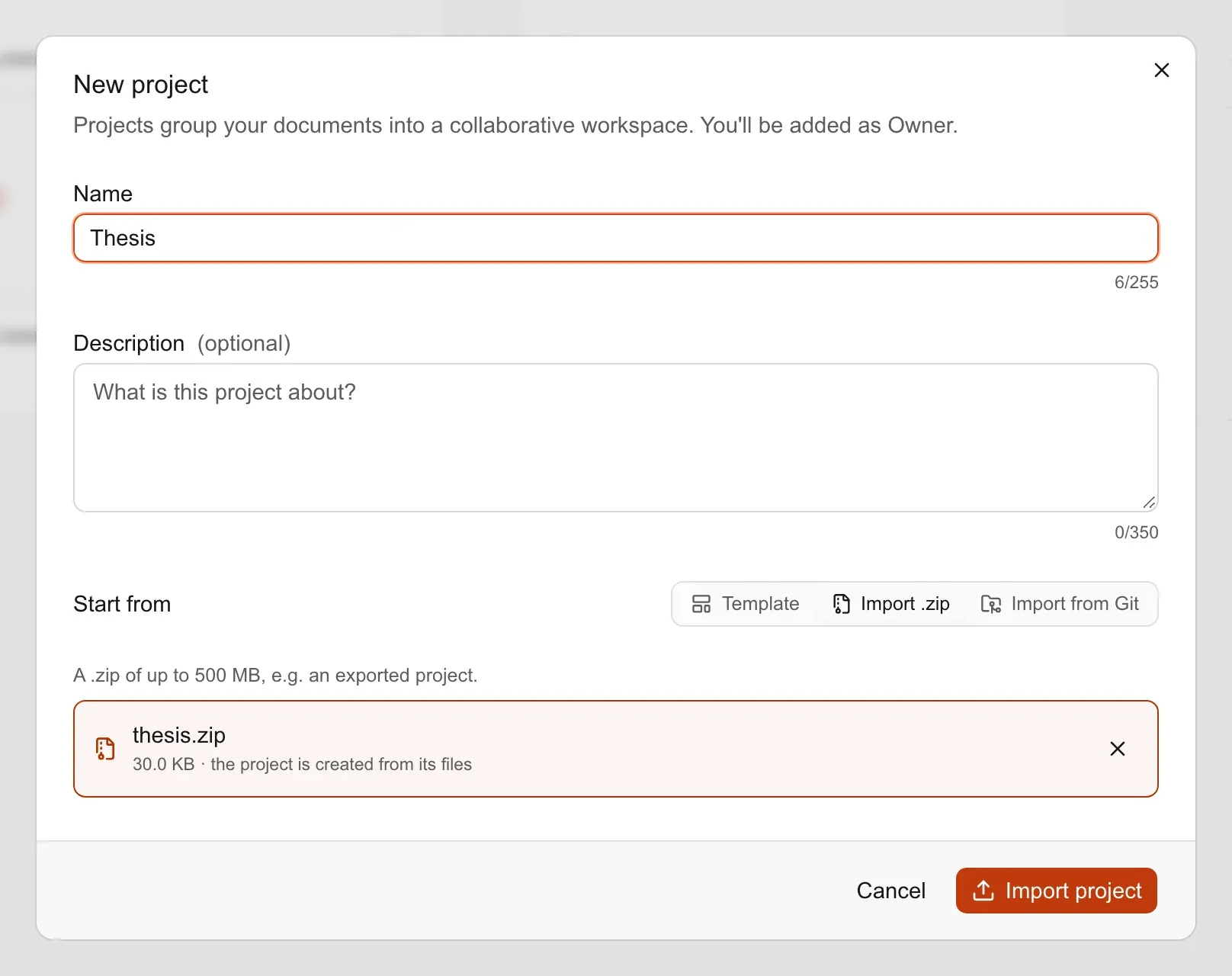
Section titled “Import a .zip as a new project”- Click New project on the projects dashboard.
- Under Start from, choose Import .zip.
- Click Upload a .zip and choose the file, or drop it onto that box. The Name is filled in from the file name; change it if you like.
- Click Import project.
Luzbase shows the steps Uploading, Processing files and Opening project, then opens the new project. Large projects can take a minute. If it takes longer than usual, you can close the window: the import carries on, and the project appears in your list when it is ready.
What happens to the files in the .zip
Section titled “What happens to the files in the .zip”- One top folder is removed. If everything in the .zip sits inside a single folder (which is what “compress this folder” produces), that folder is dropped so your files land at the top level of the project.
- System clutter is dropped silently, such as
__MACOSX,.DS_Store,Thumbs.dbanddesktop.ini. - Dependency and cache folders are skipped, such as
node_modules, Python virtual environments,site-packages,__pycache__,.ideaand.vscode. - Files Luzbase can’t store are skipped, and Luzbase lists them in a message such as “Skipped 2 files: …” with a reason for each:
| Reason shown | Meaning |
|---|---|
| unsupported file type | The extension isn’t allowed. See Supported file types and limits. |
| too large | Over 1 MB for a text file or 10 MB for an image or PDF. |
| not readable as text | A text file that can’t be read as text. |
| contents don’t match the extension | For example, a .png that isn’t a PNG image. |
| invalid name | The path breaks a naming rule. |
| not a regular file | For example, a symbolic link. |
| password-protected | An encrypted entry in the .zip. |
| duplicate | Two entries with the same path. |
| clashes with a folder | A file and a folder share a name. |
| installed packages or cache folder | A dependency or cache folder, as above. |
- Text in older encodings is converted to UTF-8. Files saved as UTF-16 with a byte-order mark, or in an older single-byte encoding, are converted. Luzbase tells you which files it converted. Check that their accented letters look right.
How the main file is chosen
Section titled “How the main file is chosen”When it imports a .zip, Luzbase looks for the main file in this order:
- A
% !TEX root = …comment in the first 20 lines of the.texfiles. If several files name a root, the one named most often wins. main.texat the top level.- The
.texfile closest to the top level that contains both\documentclassand\begin{document}.
See The main file for the full rules and how the editor uses it.
Import limits
Section titled “Import limits”| Item | Limit |
|---|---|
| .zip file size | 500 MB |
| Entries in the .zip | 100,000 |
| Files in the imported project | 500 |
| Total size of the imported files | 500 MB |
| Imports | 10 per hour |
The imported files count towards your account’s storage.
Upload files into a project
Section titled “Upload files into a project”You need to be the project’s Owner or an Editor. Open the project in the editor, then:
- Click Upload files at the top of the file tree.
- Choose one or more files. The file picker shows only file types Luzbase accepts.
You can also drag files from your computer onto the file tree. The tree shows Drop to add. To upload straight into a folder, drop the files onto that folder.
Uploads go to the branch you’re working on, and everyone on that branch sees them straight away.
If a file name is already taken
Section titled “If a file name is already taken”Luzbase shows File already exists. Choose one:
- Overwrite replaces the existing file with the one you’re uploading.
- Rename… lets you type a different name under New name (Luzbase suggests one). Click Add as new file to upload it under that name.
- Cancel skips this file.
Why an upload is refused
Section titled “Why an upload is refused”Luzbase shows one message per refused file:
| Message | Fix |
|---|---|
| file: unsupported file type. | Convert it to an allowed type. For example, convert SVG to PNG or PDF. |
| file: … exceeds the 10.0 MB limit for uploads. | Make the image or PDF smaller. |
| file: … exceeds the 1.0 MB limit for text files. | Split the file, for example into chapters. |
| file: is not valid UTF-8 text. | Save the file as UTF-8 in your text editor. |
| Not enough storage left | Delete files you no longer need, or upgrade. See Plans and limits. |
Add images while you write
Section titled “Add images while you write”- Paste or drop an image into the editor text. Luzbase uploads it into your project’s image folder (for example
figures/orimages/), or creates animages/folder if there is none. - Insert figure in the formatting toolbar opens a file picker for images, PDFs and EPS files, uploads the file and inserts a figure.