Version history
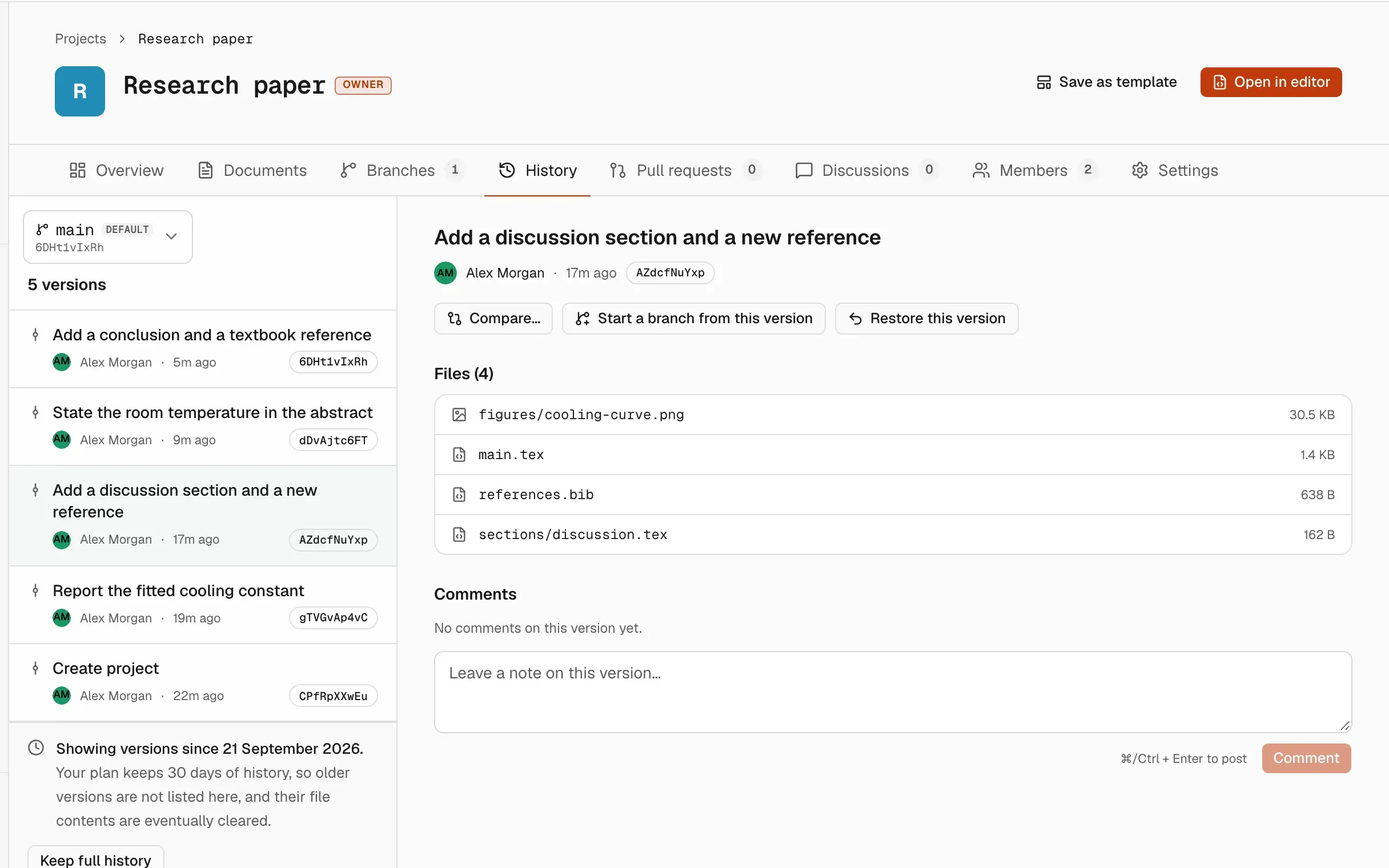
The History tab lists every version saved on a branch. From it you can look at any version’s files, see what changed, comment on a version, start a branch from it, or restore it.
Open the history
Section titled “Open the history”- Open the project page.
- Click the History tab.
- Pick a branch at the top of the list. Each branch has its own history.
Versions are listed newest first, with the description, the author, when it was saved and a short version ID. The current version of the branch is marked Current. Click Load more to see older versions.
A new project starts with one version. If a branch has no versions yet, the tab shows “No history yet”.
Look at a version
Section titled “Look at a version”Click a version in the list. You see its description, its author and anyone who edited with them, its version ID, the files it contains and its comments.
- Click a file to view it. Text files and images are shown in the page. Other files, such as PDFs, need to be downloaded.
- Click Download to download that file exactly as it was in this version.
Compare versions
Section titled “Compare versions”- Click a version in the list.
- Click Compare…. Luzbase shows the changes from the previous version.
- To compare with a different version, choose it under Changes from.
- Click Hide changes to close the comparison.
The first version of a branch has nothing before it to compare against.
Comment on a version
Section titled “Comment on a version”Below a version’s files, type in Leave a note on this version… and click Comment. Comments are up to 10,000 characters.
Every member of the project can comment, including viewers. You can edit your own comments, and you or the project owner can delete them. You can’t comment on an archived project.
Restore an earlier version
Section titled “Restore an earlier version”Restoring brings back the files of an earlier version as a new version at the top of the history. Every existing version stays where it is and no history is rewritten, so you can always change your mind.
- Click the version you want to go back to.
- Click Restore this version.
- Optionally, type a message. If you leave it empty, the new version is called “Restore version” followed by the ID.
- Click Restore as new version.
You see “Restored version … as a new version.” Images and PDFs from that version come back too, even ones that have since been deleted.
If the branch has unsaved changes
Section titled “If the branch has unsaved changes”If anyone has changed the branch since the last saved version, Luzbase asks Replace unsaved changes? before restoring. Restoring replaces those changes for everyone editing the branch, and they can’t be recovered. To keep them, open the editor, use Save version… first, then restore.
To continue anyway, click Discard changes and restore.
Start a branch from a version
Section titled “Start a branch from a version”To work from an earlier version without changing the current branch:
- Click the version in the list.
- Click Start a branch from this version.
- Name the branch and click Create branch.
The new branch starts from that version, with its history. Nothing on other branches changes. The editor opens on the new branch. See Branches.
How far back history goes
Section titled “How far back history goes”How much history you can see depends on the project owner’s plan, for everyone who opens the project:
- The Free plan keeps a limited history window. Versions older than the window are not listed, and they can’t be compared, restored or used to start a branch.
- Paid plans keep the full history.
For current numbers, see luzbase.com/pricing.
When versions are hidden, the owner sees a notice at the bottom of the list, such as “Showing versions since …”, with a Keep full history button to upgrade. Other members see that only the owner can extend the history.
The latest version of every branch is always available, however old it is.
Old file contents can be removed
Section titled “Old file contents can be removed”On the Free plan, the stored files of versions older than the history window are permanently deleted after a notice:
- Before the first deletion in a project, Luzbase emails the project owner, and nothing is deleted for at least 14 days after that email.
- If the owner moved from a paid plan to Free, deletion starts only after they have been on Free for 60 days.
- If the owner has always been on Free, there is no 60-day wait. Deletion can start once the 14-day notice has passed.
- The latest version of every branch is never affected, and neither is any file that a version still kept in the project uses.
- The versions stay in the list with their description and date, but their files are marked as no longer stored, and they can’t be restored.
If the owner upgrades before contents are deleted, the full history is visible again. To keep an old version for good, restore it as a new version or start a branch from it while you can still see it. For what changes when you move to Free, see Downgrade to Free.