Start from a LaTeX template
A template is a ready-made set of LaTeX files: a document class, styles, a bibliography setup and starter text. Starting from one gives you a project that already compiles, so you can begin writing straight away.
Find a template
Section titled “Find a template”- Click Templates in the sidebar, or go to luzbase.com/templates.
- Choose a tab:
- Explore: public templates made by Luzbase and the community.
- My templates: templates you made or copied.
- Team · {team name}: shown only if you belong to a team, with its members’ private templates.
- Narrow the list with Search templates… or a Category (for example Thesis, Journal article, CV / Résumé, Presentation or Poster). In Explore you can also pick a University, and filter by who made the template with By Luzbase or Community.
- Sort by Most used, Recently updated, Newest or Name (A–Z).
The gallery is public: you can browse Explore without an account. To use a template, you need to sign up.
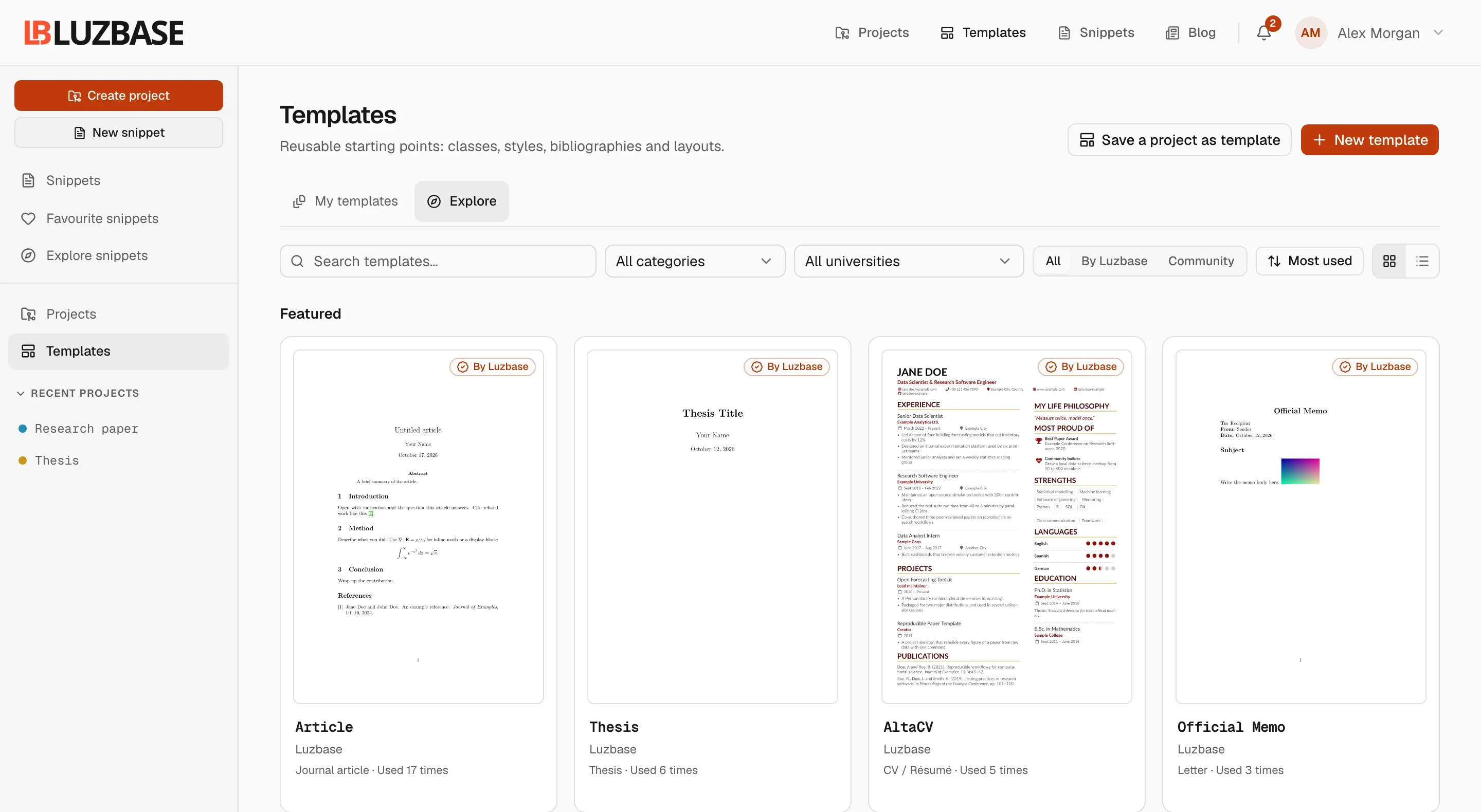
Official templates
Section titled “Official templates”Templates with a By Luzbase badge are made and maintained by Luzbase. They include general-purpose layouts (articles, notes, a thesis, CVs, a memo) and formats for specific universities and journals.
Community templates are made by other Luzbase users. Luzbase reviews each one to check that it compiles and is safe before it appears in Explore, but does not endorse it. Check its license before you reuse it. A template named after a university is not made or endorsed by that university unless it says so.
Preview a template
Section titled “Preview a template”Click a template card to open its page. There you can see:
- Preview: the compiled PDF, page by page.
- Files: every file in the template, read-only. The main file is marked: compiles start there.
- Versions: the template’s published versions.
- Details: author, category, university, tags, license, main file, number of files and size, engine, version, and how often it has been used.
Start a project from a template
Section titled “Start a project from a template”- On the template’s card or page, click Use template. The New project dialog opens with the template selected.
- Enter a Name for your project, and optionally a Description.
- Click Create project.
Luzbase copies every file of the template’s current version into your new project and opens the project. The project’s overview shows which template and version it was created from.
You can also start from the New project dialog itself: under Start from, keep Template selected and pick one from the By Luzbase, My templates or Recent tabs (plus Team, if you belong to one), or choose Blank for a single empty main.tex. See Create a project.
Make your own copy
Section titled “Make your own copy”To change a template for your own use, click Make a copy on its page. Luzbase copies it into My templates as a private template and opens it for editing. See Edit a template.