Two-factor authentication
Two-factor authentication asks for a code from your phone after your password, so someone who learns your password still can’t sign in. Luzbase uses an authenticator app for the codes, with recovery codes as a backup.
Before you start
Section titled “Before you start”- Verify your email address first. Your email is how you get back in if you lose your phone, so Luzbase asks you to confirm it before you turn on two-factor. See Profile and email address.
- Install an authenticator app on your phone, such as Microsoft Authenticator, Google Authenticator or 1Password. Any app that supports standard 6-digit time-based codes works.
Two-factor is optional for every account.
Turn on two-factor authentication
Section titled “Turn on two-factor authentication”- Open your avatar menu and click Security.
- Under Two-factor authentication, find Authenticator app and click Set up.
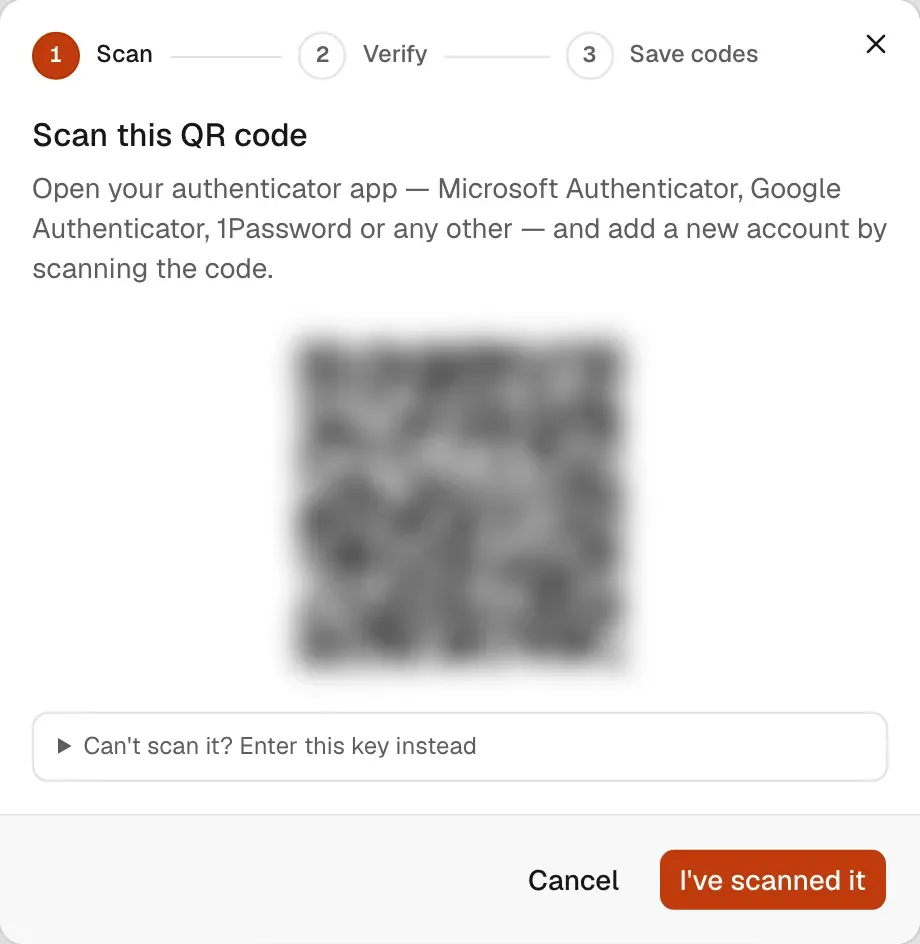
- Scan this QR code with your authenticator app. If you can’t scan it, click Can’t scan it? Enter this key instead and type or copy the key into the app.
- Click I’ve scanned it.
- Under Enter the code from your app, type the 6-digit code your app shows and click Verify.
- You see Your account is protected. Save your recovery codes now: click Copy all or Download, and store them somewhere safe, such as a password manager.
- Tick I’ve saved my recovery codes and click Done.
The Authenticator app row now shows an On badge.
Sign in with two-factor
Section titled “Sign in with two-factor”After your email and password (or Google or GitHub), Luzbase shows Confirm it’s you.
- Open your authenticator app and find the Luzbase code. It changes every 30 seconds.
- Enter it and click Verify and sign in.
You have 5 minutes and 5 attempts to enter a code. After that, sign in again.
Use a recovery code
Section titled “Use a recovery code”If you don’t have your phone:
- On Confirm it’s you, click Use a recovery code (after “Lost access to your authenticator?”).
- Enter one of your saved recovery codes and click Verify and sign in.
You get 10 recovery codes, and each one works once. Luzbase emails you when a recovery code is used.
Check or replace your recovery codes
Section titled “Check or replace your recovery codes”Under Two-factor authentication on Security, the Recovery codes card shows how many codes you have left, for example “7 of 10 codes left”. When you have two or fewer left, it warns you.
To get a fresh set:
- Click Regenerate (or Generate new set when you’re running low).
- In Generate new recovery codes?, enter your Password (if your account has one) and a current code from your authenticator app or a recovery code.
- Click Generate codes.
- Save the new codes from Your new recovery codes.
Your old codes stop working at once.
Turn off two-factor authentication
Section titled “Turn off two-factor authentication”- On Security, click Turn off next to Authenticator app.
- In Turn off the authenticator app?, confirm with your Password or with a Two-factor code.
- Click Turn off.
Luzbase emails you when two-factor is turned on or off.
Other actions that ask for a code
Section titled “Other actions that ask for a code”While two-factor is on, Luzbase also asks for a code when you:
- change your email address
- delete your account
If you lose your phone and your recovery codes
Section titled “If you lose your phone and your recovery codes”You can’t turn off two-factor yourself without a code. Contact support from the email address on your account and explain what happened.