Code and visual modes
The editor has two modes for the same file. Code shows the LaTeX source. Visual hides most of the markup and shows headings, math, lists, figures and tables much as they will appear in the PDF. Both modes edit the same file, so you can switch at any time.
Switch modes
Section titled “Switch modes”- Open a
.texfile in the editor. - Click Code or Visual in the bar at the top of the editing area, next to Compile.
Your cursor position, scroll position, undo history and live collaboration carry over when you switch. Luzbase remembers your mode in this browser.
The switch appears only for LaTeX files. Files such as .bib or .md always open in code mode.
Your collaborators can use a different mode from you. Everyone edits the same source.
What visual mode shows
Section titled “What visual mode shows”- Headings with their numbers, following your document class,
\appendixand\setcounter. - Math, rendered inline and in display, with equation numbers and
\tag. While you edit inline math, a small preview shows the result. - Lists, theorem-like environments with their numbers, and proofs.
- References and citations as chips. A
\refchip shows the resolved text, such as “Fig. 2” or “Eq. (3)”, and shows??when the label does not exist. Click a chip to jump to its target. \inputand\includeas chips that open the included file.- Title, footnotes, links, quotes and a clickable table of contents.
- The preamble collapsed into a bar. Click Show document preamble to edit it, and Hide document preamble to fold it again.
To edit the LaTeX behind any element, put the cursor on it and press Alt+Enter. Press it again when you are done.
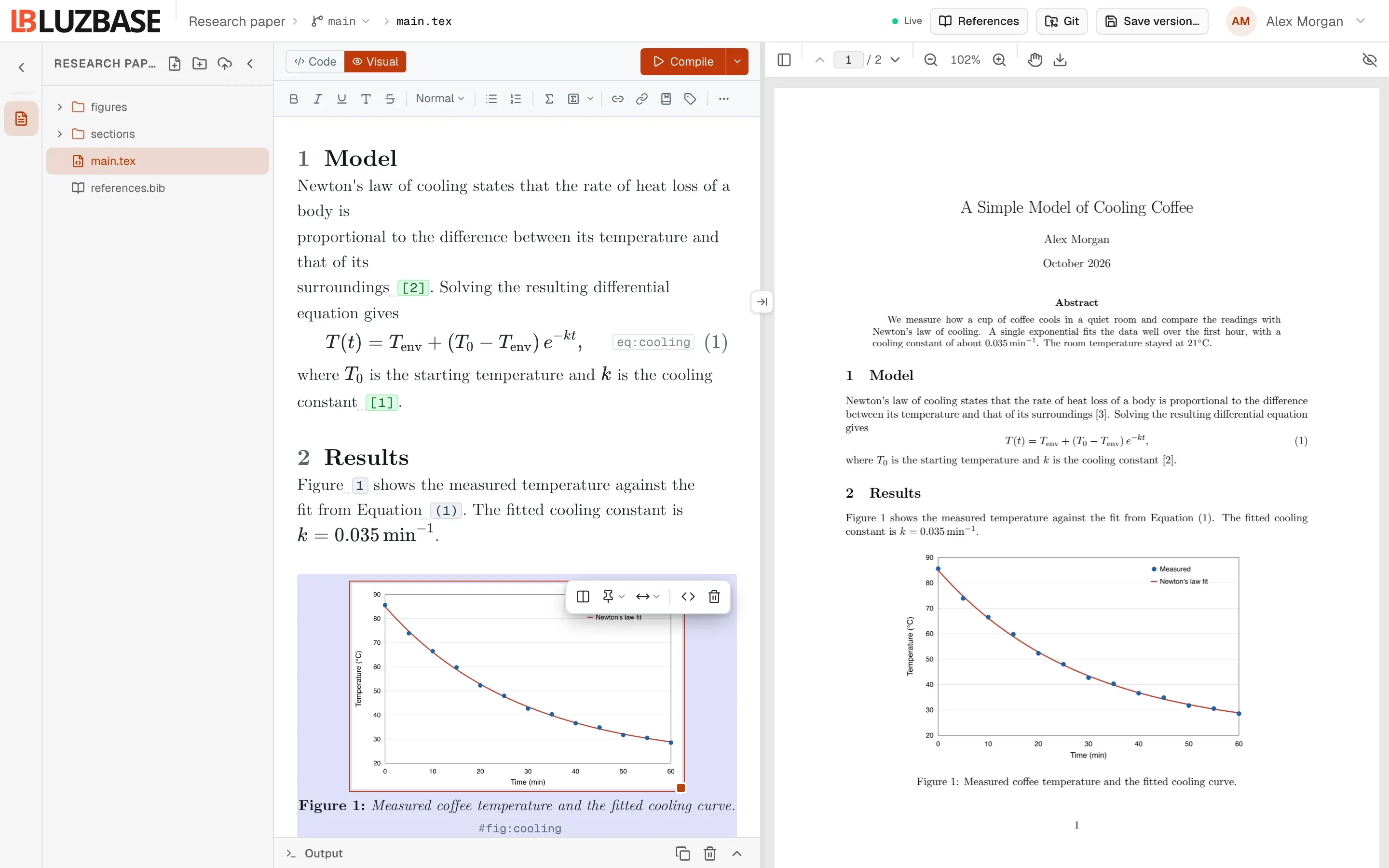
Figures
Section titled “Figures”Images in your figures appear as pictures. You can:
- click the caption to edit it (“Add a caption” when there is none),
- drag the resize handle to change its size, which sets its width as a fraction of
\linewidth, - use the figure toolbar: Span columns, Placement, Figure width (25%, 50%, 75% or 100%), Edit figure source and Delete figure,
- click Upload on a figure whose image file is missing.
PDF and EPS images show as a placeholder in visual mode. They still appear in the compiled PDF.
Tables
Section titled “Tables”You can type in table cells directly. The table menus let you insert and delete rows and columns, set column alignment, choose borders (All borders, Booktabs rules or No borders), move the caption, turn the header row on or off, and edit the table source. Copying a range of cells copies it as tab-separated text, ready to paste into a spreadsheet.
Type with Markdown-style shortcuts
Section titled “Type with Markdown-style shortcuts”In visual mode, some Markdown habits turn into LaTeX as you type:
| You type | You get |
|---|---|
**text** |
\textbf{text} |
*text* or _text_ |
\emph{text} |
`text` |
\texttt{text} |
#, ## or ### then a space |
A section, subsection or subsubsection |
- or * then a space |
A bulleted list |
1. then a space |
A numbered list |
> then a space |
A quote |
$$ |
Display math \[ \] |
Press Backspace right after a conversion to undo it and keep what you typed.
Things to know
Section titled “Things to know”- Spell check works only in visual mode. See Spell check.
- Visual mode is a view of the source, not a separate document. Anything it cannot draw stays visible as LaTeX.
- Pasting formatted text from a web page or a word processor in visual mode converts it to LaTeX, including math where possible.