Compile your first PDF
Compiling turns your LaTeX source into a PDF. This page shows how to compile, read the result, fix a first error and download the PDF.
Compile
Section titled “Compile”- Open your project in the editor.
- Click Compile at the top of the editor column, or press Ctrl+Enter (Cmd+Enter on a Mac).
- The button reads Compiling… while the PDF is built. To stop the compile, click Cancel.
- When the button reads Compiled, the PDF appears in the preview. The Output panel ends with a line such as
Compiled successfully — 3 pages, 2140ms.
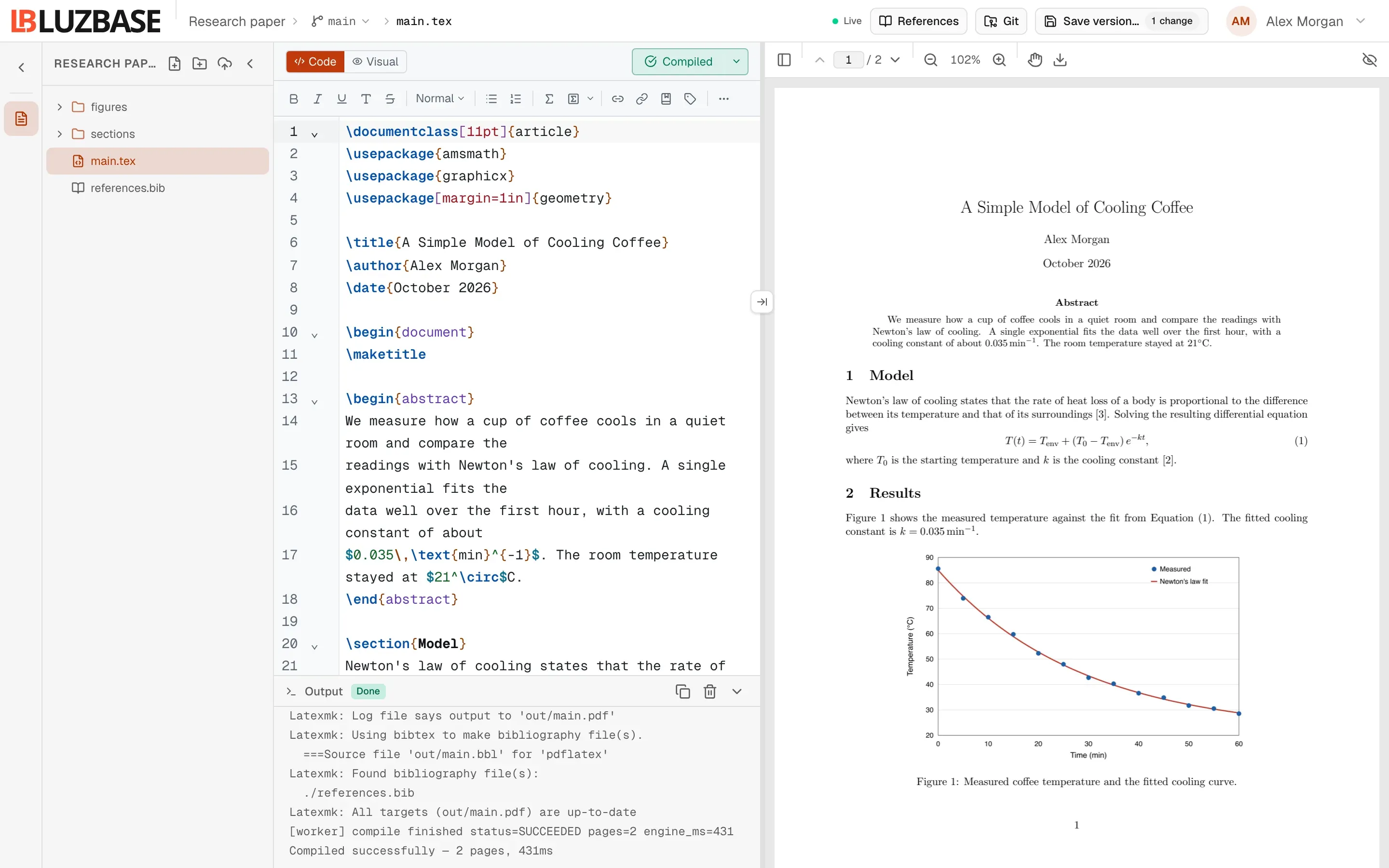
Everyone working on the same branch sees the latest compiled PDF.
Which file and engine are used
Section titled “Which file and engine are used”Luzbase compiles your project’s main file, usually main.tex, with pdfLaTeX. For a first project you don’t need to change anything. To use XeLaTeX or LuaLaTeX, or to split a long document into several files, see The main file and Compilers and TeX Live.
Compile automatically as you type
Section titled “Compile automatically as you type”By default, Luzbase compiles only when you ask (Manual render). To compile as you type:
- Click the arrow next to Compile.
- Choose Auto render (“Renders as you type”).
Luzbase remembers your choice in this browser. To go back, choose Manual render (“Click to compile”).
If the compile fails
Section titled “If the compile fails”The button reads Failed, and the Output panel opens on a summary of the errors. Each error shows the file and line, the source line and, where Luzbase recognises the problem, a hint.
- Click the file and line link to jump to the error in the editor.
- Fix the line and compile again.
A common first error is a math symbol outside math mode:
The speed is v_0 = 3 m/s. % fails: _ only works in mathThe speed is $v_0 = 3$ m/s. % worksIf the compile fails, the preview keeps showing the last PDF that worked and marks it Out of date. See Compile logs and errors and Common LaTeX errors.
Download the PDF
Section titled “Download the PDF”- In the preview toolbar, click Export PDF.
- Click Download.
The download is the PDF in the preview right now, so it includes changes you haven’t saved as a version yet. See Download and export.
Jump between the PDF and the source
Section titled “Jump between the PDF and the source”- Double-click a spot in the PDF to jump to the matching line in the source.
- Double-click in the source, click Show in PDF on the divider, or press Ctrl+Alt+J (⌃+⌥+J on a Mac) to find the current line in the PDF.
See PDF preview.