Edit together in real time
Everyone on a project can open the editor at once. Changes appear for others as you type, and Luzbase saves them as you go, so there is no Save button to press.
Start editing together
Section titled “Start editing together”- Invite your co-authors to the project. See Invite collaborators.
- Each person opens the project and clicks Open in editor.
- Pick the same branch. Live editing is shared per branch: you see the typing of people on your branch only.
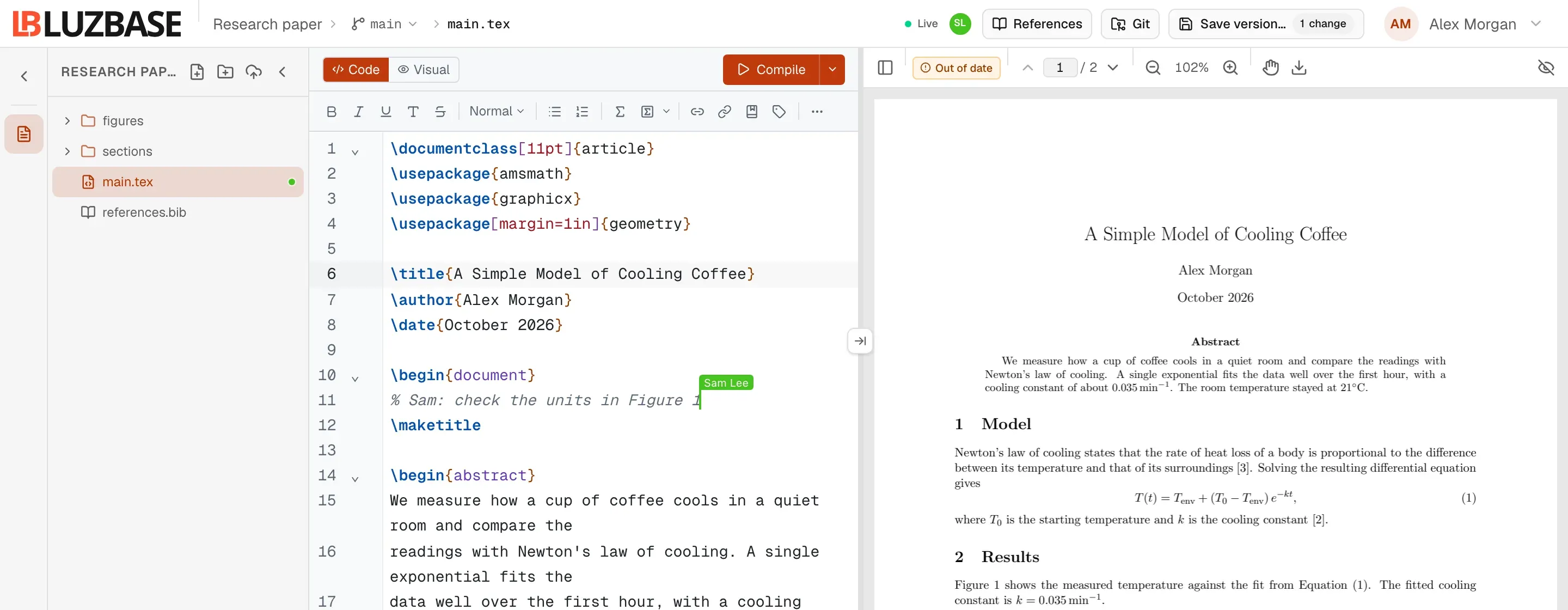
You can all type in the same file, even on the same line. Each person’s cursor and selection shows in their own colour, with their name on it.
See who is working with you
Section titled “See who is working with you”- Header avatars. People on your branch appear as coloured initials in the editor header, up to four, then “+N”. Hover over an avatar to see which file the person has open, for example “Maya Ortiz — in chapters/intro.tex”.
- Your other tabs. If you have the project open in another browser tab, it shows as a dashed avatar (“you, in another tab”).
- File tree dots. A coloured dot next to a file means someone has that file open.
- Event notices. When a co-author does something that changes the whole branch, a notice tells you, for example “Maya Ortiz saved a version.”, “Maya Ortiz restored an earlier version.” or “Maya Ortiz merged a pull request into this branch.”
Read the connection status
Section titled “Read the connection status”The status in the editor header tells you whether your changes are reaching everyone else.
| Status | What it means |
|---|---|
| Live | Connected. Every change is saved as you type and shared with everyone on this branch. |
| Saving… | Your latest changes are on their way. Keep the tab open until it says Live. |
| Connecting… / Reconnecting… | The connection dropped or is starting. Your changes are kept in this tab and sent when it is back. |
| Offline — changes kept in this tab | You are offline. Keep typing; changes are sent when the connection returns. |
| Disconnected | The branch was deleted, or you no longer have access to the project. The editor becomes read-only; reload the page. |
If some of your edits could not be delivered (for example, after a reload, or because the file was deleted meanwhile), the editor offers them back in an Unsaved changes in … dialog where you can copy the text or save it as a new file.
Autosave and versions
Section titled “Autosave and versions”Typing is saved continuously to the branch’s shared live copy. A version is different: it is a named snapshot you choose to make with Save version…, which you can return to and compare later. See How saving works and Save a version.
When the editor is read-only
Section titled “When the editor is read-only”Sometimes you can follow live edits but not type. A badge next to the file name says why:
| Badge | Why you cannot type |
|---|---|
| View only | You are a Viewer on this project. You can read, follow live edits and download the PDF. |
| Archived | The project is archived. Only the owner can unarchive it. |
| Protected | You are on a protected main branch, and only the owner edits it directly. Create a branch to edit, then merge it with a pull request. See Branches. |
These changes take effect while you work. If the owner changes your role, archives the project or turns on branch protection, the editor switches to read-only without a reload and tells you, for example “Your role changed to Viewer. The editor is now read-only.”
Limits
Section titled “Limits”- The project owner’s plan limits how many collaborators a project can have. See Plans and limits.
- A text file can be at most 1 MB to be edited live.
- Luzbase has no track changes or suggestion mode, and no comments anchored to lines in the source. To talk about the work, use Discussions.